Download MovieBox For Firestick TV | 2026 Latest V3.2 (Free)
MovieBox lets you enjoy some free, uninterrupted entertainment on your compatible device. This guide is hyper-focused on MovieBox For Firestick device, so if you have a big TV screen equipped with a Fire TV OS, you’re eligible to run this app on your TV. Since the app lacks availability on the official app store, here we have shared a detailed installation guide to access the latest MovieBox app on a Fire TV device.
One of MovieBox’s biggest highlights is its diverse content library that serves worldwide entertainment content, so you can access Asian dramas, Hollywood films, Bollywood, and South Indian movies. There is a rich database of regional Hindi, Tamil, Telugu, and Pakistani films.
If you love watching foreign language movies, dramas, and anime, then MovieBox won’t disappoint at all. In fact, there is a dedicated anime section where you can find all the popular and trendy anime series with new episodes.
What is MovieBox For Firestick
MovieBox is a versatile standalone watching app that has OTT series and provides live sports streaming as well. You can download movies and shows from the app on your device’s local storage for buffer-free, relaxed offline viewing. MovieBox TV is a separate app designed specifically for TV; the content database is the same as the mobile version of this app, but the UI is a bit different, designed for big-screen devices for a better user experience and easier navigation through the TV remote.
New movies and shows are added quite often on MovieBox, which makes the platform active and relevant in today’s world. If you don’t want to spend money on OTT apps anymore and are looking for some free alternatives, MovieBox is an app that is suitable for everyone because there is content for the masses, and it works smoothly on Fire TV Stick devices.
How to Download and Install MovieBox on Firestick?
To install the MovieBox app on a Fire TV device, you only need the Downloader app, and following the given steps will help you easily get the latest MovieBox app configured and ready to use on your TV.
Step 1. Turn on Unknown Sources
- Navigate the settings of your Fire TV and go to the My Fire TV section.
- Go to the About section, then click on your Fire TV device name multiple times until you see the “Developer Options enabled” message on the screen.
- Now, the developer mode is enabled, so go back and then open the My Fire TV section again.
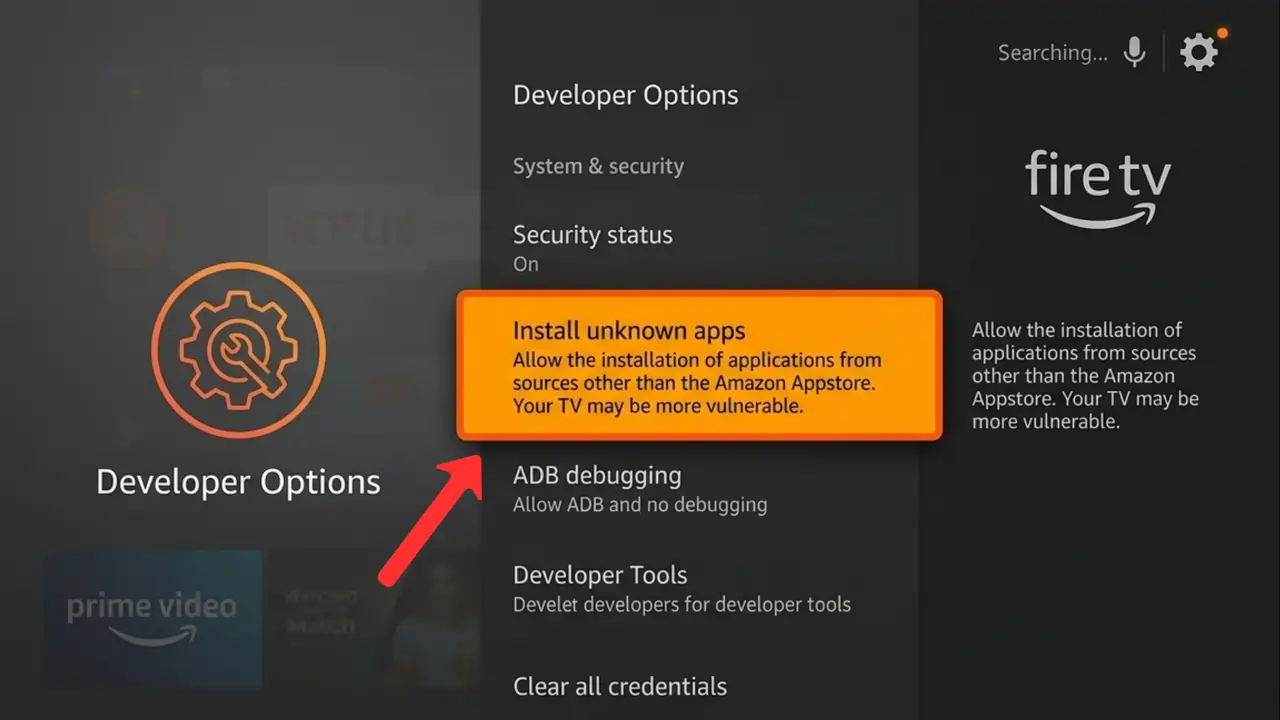
- This time, you can see Developer Options, so tap on it and click on Install Unknown Apps to enable it.
Step 2. Download MovieBox APK
- Launch the App Store and search for the ‘Downloader’ app.
- Tap on the Downloader app and click on ‘Install’ to simply download and install it.
- Once installed, launch the Downloader and enter this code – “9092169” then click on ‘Go’.
- The downloading of the latest MovieBox APK file will start. Don’t exit until it is done.
Step 3. Install MovieBox App
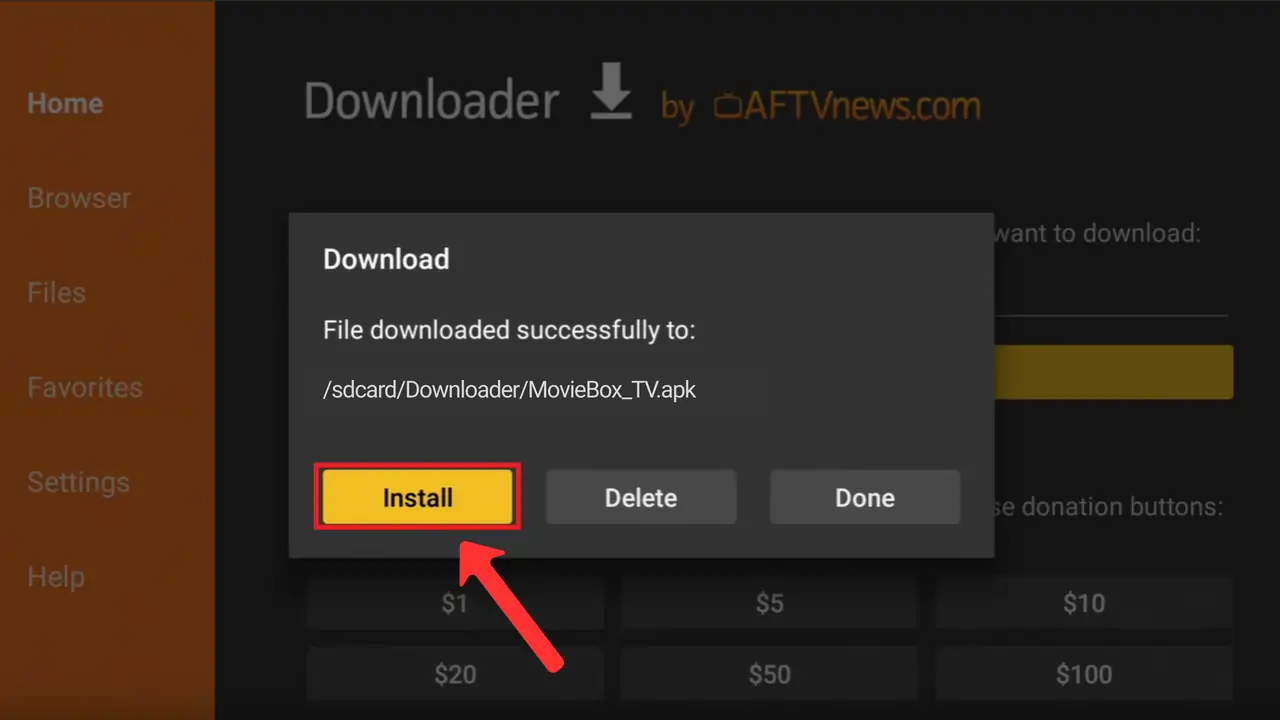
- Once the MovieBox APK file is downloaded fully, it may show an ‘Open’ button on the screen, so click on it.
- Tap on the Install option to start the installation process.
Step 4. Open MovieBox on Fire TV
- Exit the Downloader app once the app is installed, and go back to the home screen.
- In the installed apps section, you may find the MovieBox app icon, so select it and launch the app.
Common Installation Errors and Their Solutions
Little issues can raise some big problems to access MovieBox app on your Firestick TV but don’t get disheartened; you can fix these problems. Mentioned below are useful guides to tackle common problems and install the app properly
- App Not Installing After Download: “App Not Installed” message usually shows when the installation fails, and it usually happens if the app is incompatible with your device, so download the MovieBox Old Version APK instead of the latest version and install it.
- Insufficient Storage Space: If the app failed to download or work on your device, it might be due to a lack of available storage space. Go to the File Manager and delete some unnecessary docs and uninstall unused apps or games to free up some storage space, then install it again to make it work.
- Black Screen After APK Installation: Initiate a reboot of your Fire TV Stick device, then proceed to reopen the MovieBox app. Make sure that you’ve the latest, compatible APK version installed. If the problem continues, force stop the app and then launch it again.
- APK File Corrupted or Incomplete: Due to unstable internet or a temporary server glitch, it can lead to a corrupted APK download may not function, so in this case, simply re-downloading the MovieBox APK can resolve the problem.
- Firestick Stuck on Installing Screen: In most instances, the problem stems from the Downloader app, so clear its cache. Also, check your internet connection, as it might be responsible for any disruptions.
Benefits of Using MovieBox APK on Firestick
Extensive Film Library
The app is just loaded with a vast array of entertainment content that includes live sports, movies, series, anime, k-dramas, and western TV series. You can watch your favorite videos simply by searching for them on the platform. This diverse content gives the users more options and variety to find interesting stuff to watch anytime.
HD Quality Videos
Stream movies in up to HD quality for free, and the app lets users download videos in the desired video quality as well. When you watch videos online, MovieBox has a smart adaptive quality control technology that sets the best possible resolution for your stream automatically, so that you can enjoy watching movies in high quality with just minimal buffering.
Family Mode
When using the MovieBox app on Fire TV Stick, family mode is quite useful, especially if you have kids at home, because without turning this mode on, MovieBox can show adult or R-rated films and pieces of videos that is not a good stuff for kids to get exposure to, so it is better to turn on the family mode that turn this app into a PG MovieBox which make the platform quite clean and safe to use aroud kids.
Easy-to-Use App
MovieBox app interface is pretty straightforward, as the content library is well organized, making it super easy to browser desired type of content. It has a quick search functionality to locate favorite titles with a few taps. Most importantly, the interface is lag-free even on a low-end Firestick TV, it works quite well.
Multilingual Subtitles
Watch foreign language movies easily, regardless of the audio language, with the help of subtitles that are already available in 30+ languages. Choose your native language for subtitles to watch international films and dramas with a better understanding of the narrative in your mother tongue, thanks to the on-screen captions.
Personalized Viewing Experience
There are various customization options available in the MovieBox app, such as a new addition of Study Mode that allows you to create a separate profile just for educational content that removes all other entertainment stuff from the app so that you can focus on studying better without distraction and watch your course content on this app. Just like that, you can adjust playback speed, app interface color scheme, subtitle style, and font size.
FAQs
Conclusion
MovieBox For Firestick is currently the best subscription-free alternative to OTT platforms like Netflix and Hulu that charge hefty premiums every month. With this app, you get access to HD-quality films and shows that you can stream online using its built in meida player or download to your device’s storage. The downloaded movies can be viewed later offline.
The app is extremely lightweight and works smoothly on the Fire TV Stick device, and its straightforward, dark-themed design, which encompasses thousands of pieces of material meticulously categorized across diverse genres, transforms the exploration of its extensive content collection into an enjoyable activity and makes your Firestick into a theatre packed with thousands of films and shows to watch.


